Project Notes
Building Octopus OCR
Background
I've recently been curious about what I spend the most money on day to day, and wanted to get some insights into my spending habits. The most classic way to do this would be with a spreadsheet with charts and formulas, but I didn't want to input all the data manually. Another option was using a budgeting app, and I saw that Monarch Money and Quicken Simplifi were popular options, and even offered account connections to automatically sync data from bank accounts. But this came with a separate set of issues: 1. I didn't really trust these providers to store my sensitive spending data, and 2. Neither of these apps was available in the Hong Kong app store. The account connection data sources, Plaid, Finicity, and MX, also only seemed to support US and European countries. I tried a budgeting app that was local to Hong Kong, but it straight up asked me for my bank username and password! So that was also a no go. In the end, I settled on self-hosting Actual Budget. It allowed me to fully own my data, while also offering the conveniences of a traditional budgeting app. For data importing, most banks offer .ofx or .csv exports that can be directly imported into Actual and paired with payee-based rules for automatic categorization.
But there was one major hurdle specific to Hong Kong: Octopus spending. Octopus is Hong Kong's transit card, but it can be used at basically all shops in the city. Almost all of my daily transportation, meals, and convenience store purchases are made using Octopus, and they don't offer any way to export the transaction history. The Octopus App does have a transaction list, but I still wanted to avoid manually inputting data, so I decided to just make some software to convert a screen recording of the Octopus App transactions into an importable .ofx file. How hard could it be?
Plan
The Octopus App's transactions page has a simple layout: a column of transactions, each with an icon indicating the category on the left, the payee name with the transaction date under it in the middle, and the transaction amount on the right. This seemed like a very straightforward task to do. Detect all the icons on the page and use them as the anchor for each row, then get the bounding boxes for the payee, date, and amount, and finally run OCR to get the text. I didn't expect there to be multiple transactions with the exact same payee, date, and amount, so I could use these values to create a key for deduplication. For video input, I would sample frames from the video, discard frames that are too similar, and rely on deduplication.
OCR Pipeline
For icon detection, I decided to use cv2 HSV color thresholds and contour detection to classify the icons, as it should have been faster than exact image matching, and there were only a fixed number of category icons. I limited the detection to use the left column of the image where the icons were expected to be. For the payee, date, and amount, I just used fixed geometries relative to the icon center to create bounding boxes.
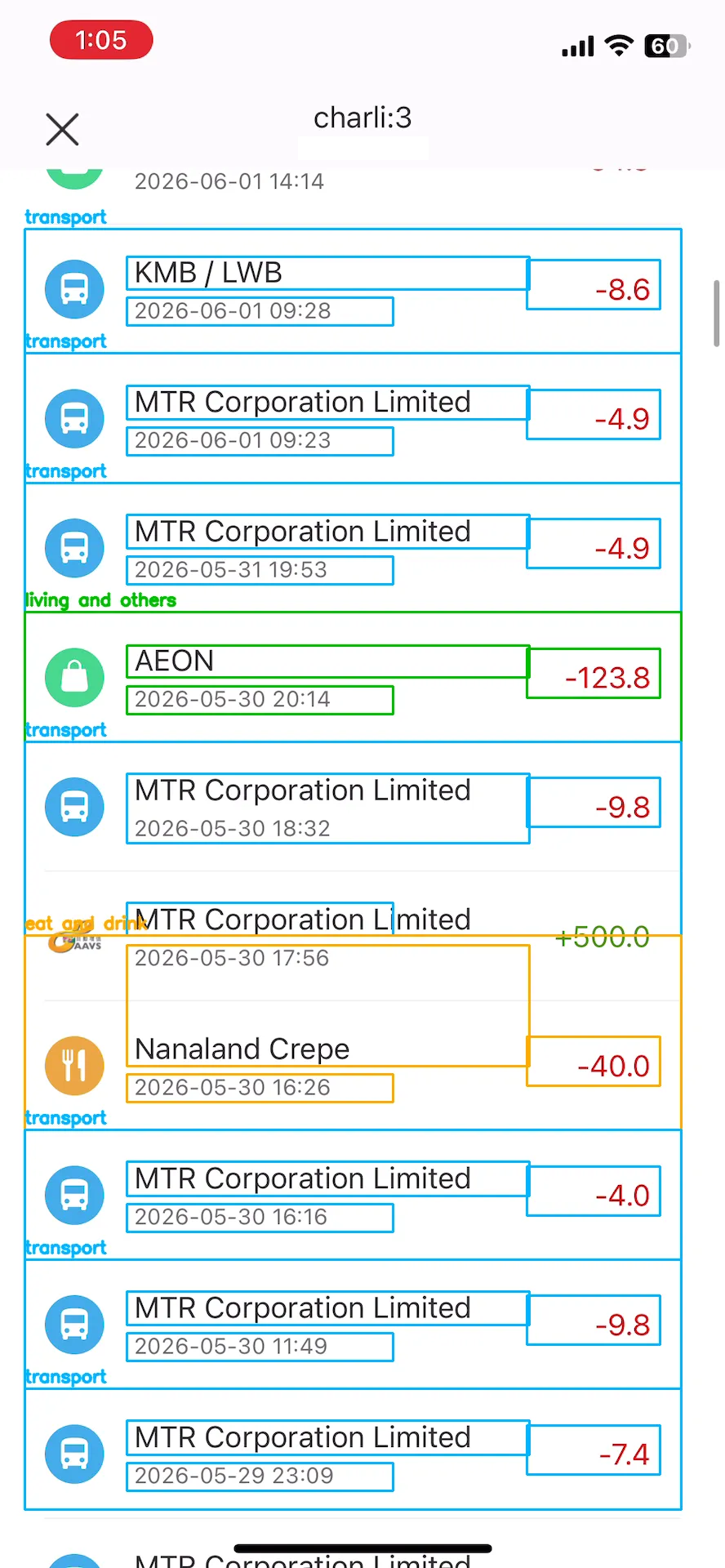
The first problem I encountered was rows where half a payee name would be cut off in the screenshot, but because the icon was detected, it was still counted as a row and garbage text was OCRed. This was fixed by filtering rows that were below a minimum height, rows that started too close to the top, and rows that ended too close to the bottom.
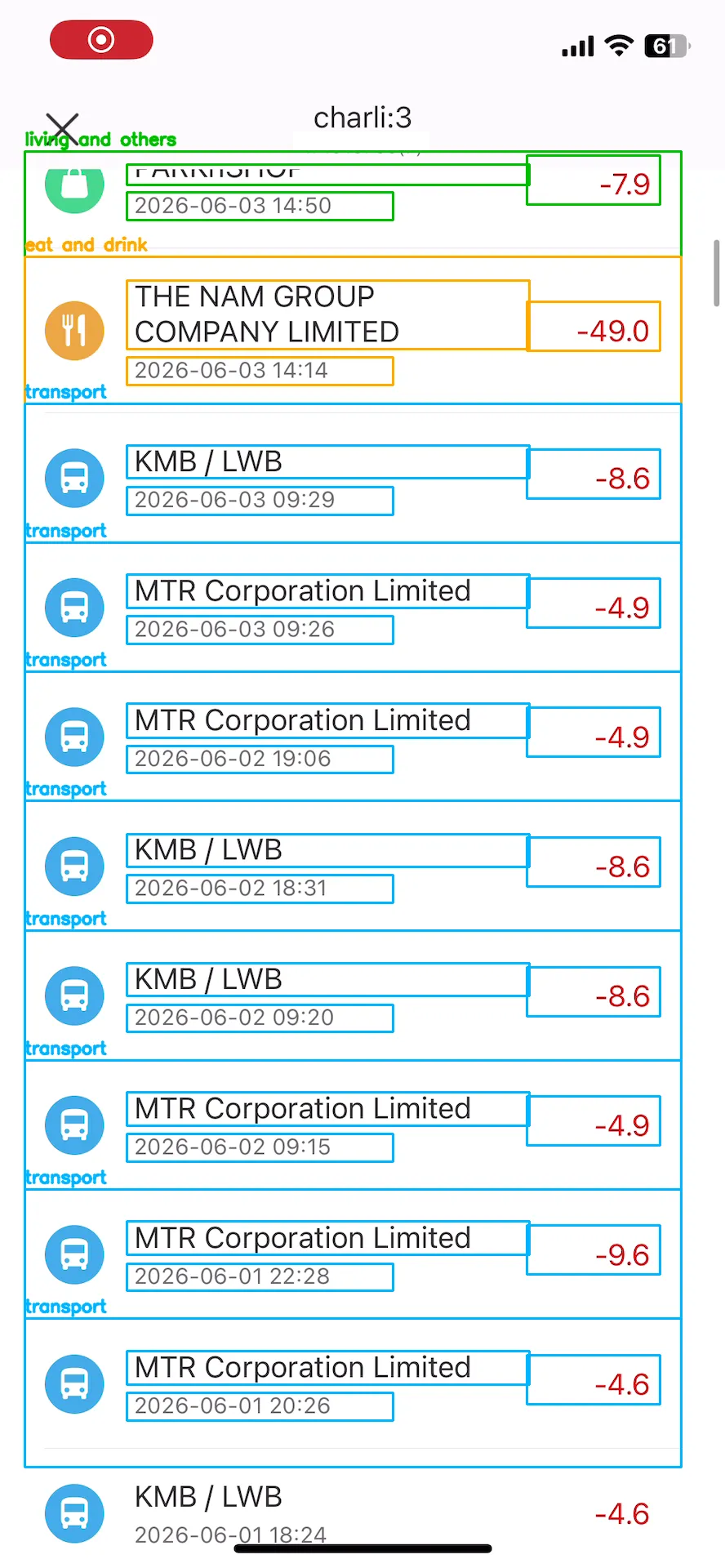
The next problem was that some payees had long names that could span multiple lines, so the fixed bounding box did not work for these transactions. I resorted to a similar cv2 approach, using gray pixel presence to detect text lines, and used the fact that the distance between lines of the payee name was smaller than the distance between the payee and the date to set the limit for merging multiple payee lines.
After this, I kept running into issues with OCR giving bad results. There were cases where the payee would be wrong, and digits would be missing from the amount. I was confused as to why this was happening... the font was clean, the text was clear, the screenshots were high quality. I had used Docling's OCR to pull full pages of text from scanned documents, yet I couldn't even get a single line of text detected? I was using Tesseract as the default OCR engine, and I theorized that maybe it was a little outdated. I searched around and found that PaddleOCR was a new, fancy OCR engine that claimed better performance, so I added support for Paddle, only to find that the processing time had tripled and it failed in some cases that Tesseract didn't fail in! So I went back: maybe Tesseract wasn't the issue; maybe my inputs were the issue. The payee, date, and amount images were cropped in width based on geometry-based bounding boxes, which means there was usually some horizontal whitespace around the word. I didn't expect this to be an issue, but after adding whitespace removal, the OCR results improved significantly!
Another thing I learned about Tesseract was that it had many different Page Segmentation Modes, each built for different purposes. My final setup with Tesseract involved using multiple modes: PSM 6 for the multi-line payees, PSM 7 for the transaction date and transaction amounts, and PSM 8 as a secondary read on the amount if the primary had low confidence.
Even with the whitespace removal, the detected amounts often had errors. The transaction direction was determined by a minus sign that was sometimes missed, and the decimal point was also sometimes missed, turning a $10 transaction into a $100 transaction. However, these issues actually didn't require the OCR to get it right. The amount was colored green or red based on transaction direction, and the decimal point was already present, so we could add a rule to add the decimal if the OCR didn't catch it.
With these two fixes in place, the pipeline was functional!
Finishing Touches
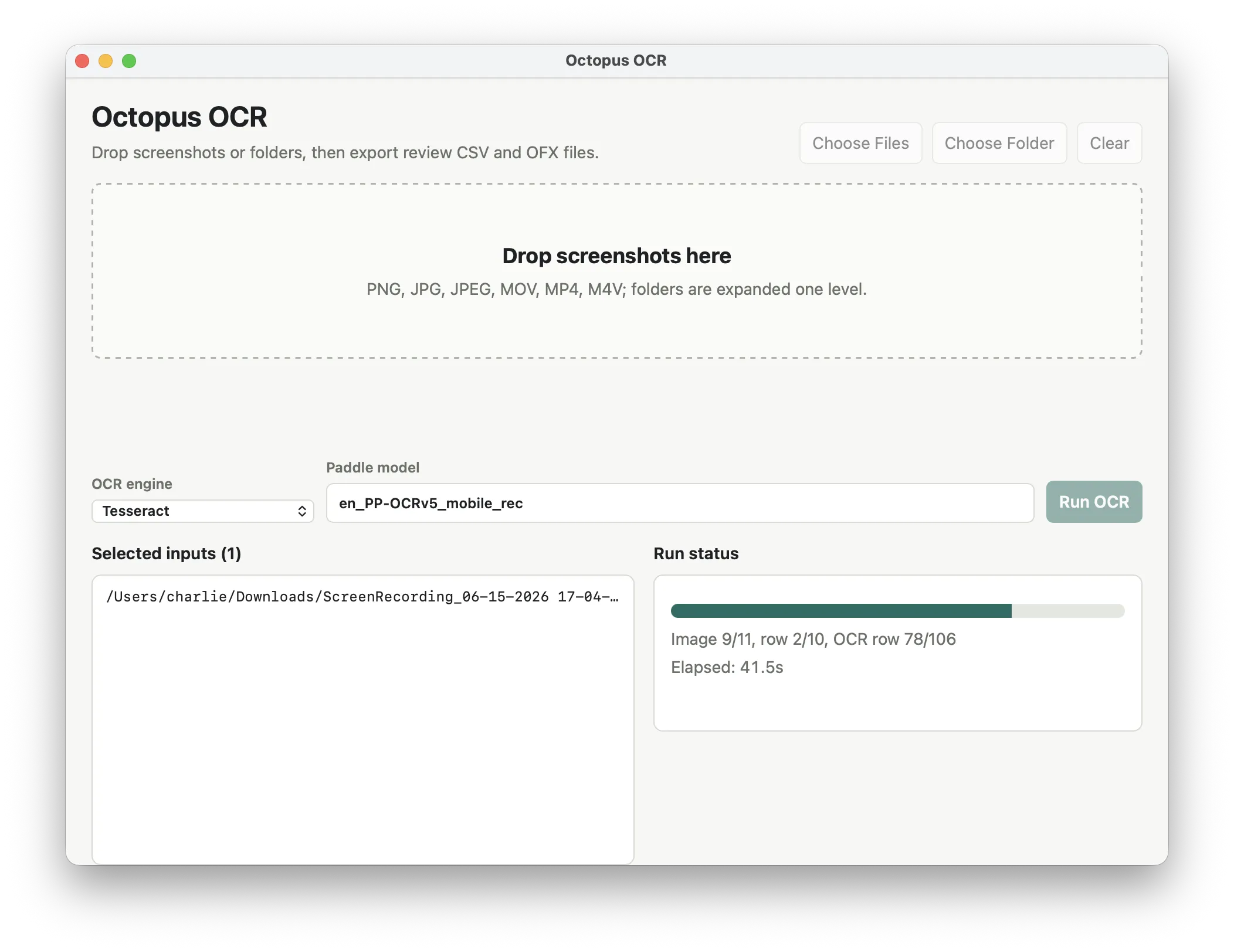
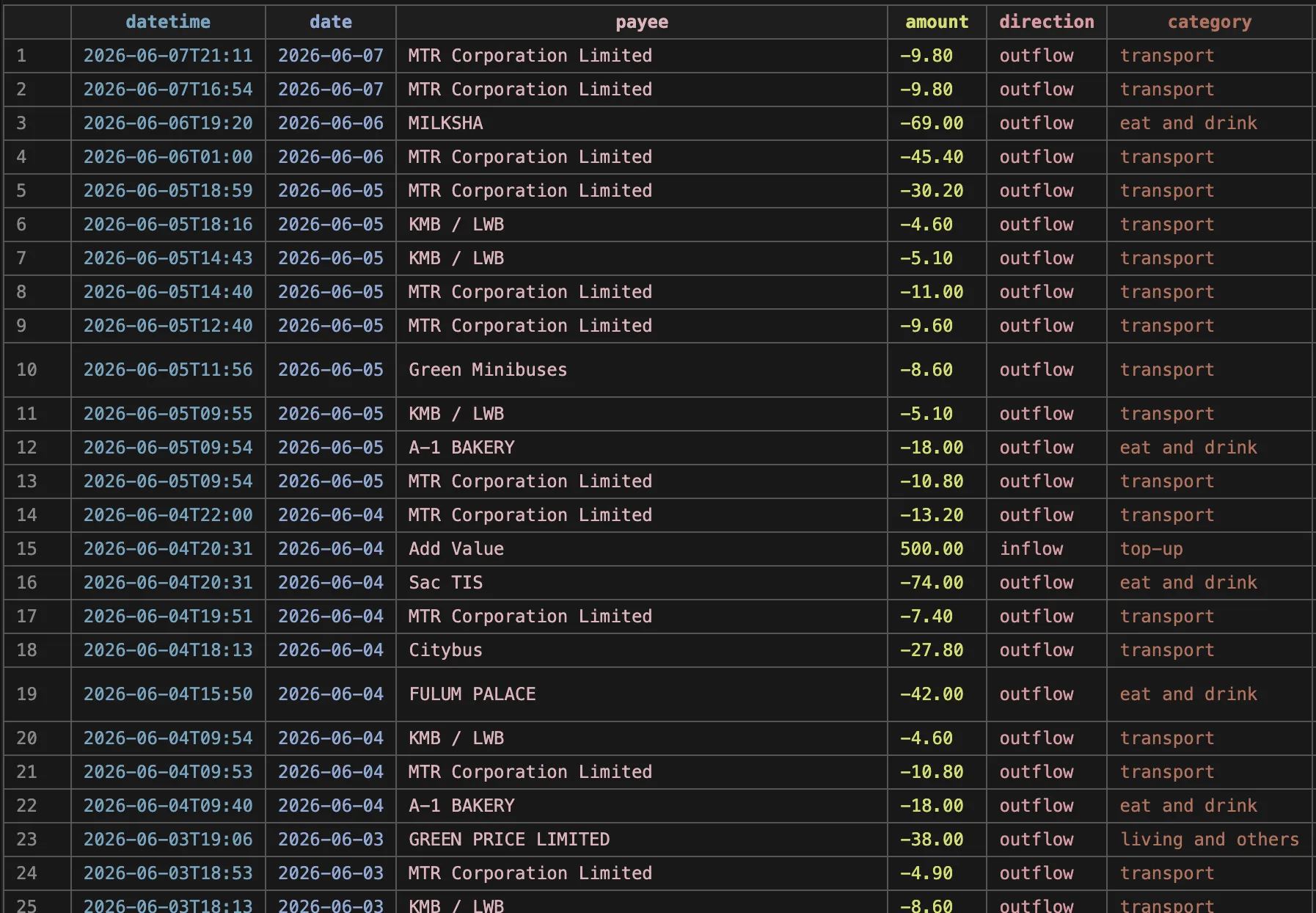
So now the workflow was to screen record myself scrolling the transactions in the Octopus app, AirDrop that over to my laptop, and run the Python script with the input path, then import the .ofx file from the output folder. I thought it would be easier to just drag and drop the file into a GUI to start the process, and the simplest way I could find to do this was to use pywebview to show a GUI that calls the same Python scripts internally. Finally, I bundled the GUI into a .app that just changes into the Octopus directory and launches pywebview. So the workflow was clear. Screen record on phone, AirDrop to laptop, open the Octopus OCR GUI, drag the screen recording in, review the .csv output, then import the .ofx into Actual.
Conclusion
I think my biggest takeaways from this project are: 1. Always save intermediary output for debugging; the screenshots with the bounding boxes made issues apparent when they would've been hard to catch in the code alone. 2. OCR is great, but not perfect. Augment it with layout-specific computer vision and external signals to make it reliable. 3. The project will always be harder than you think it is.